How to Free Up Android Storage Without Deleting Important Photos
When Android storage gets low, the safest first step is to understand what is taking space. A careful cleanup can remove clutter without putting important memories at risk.
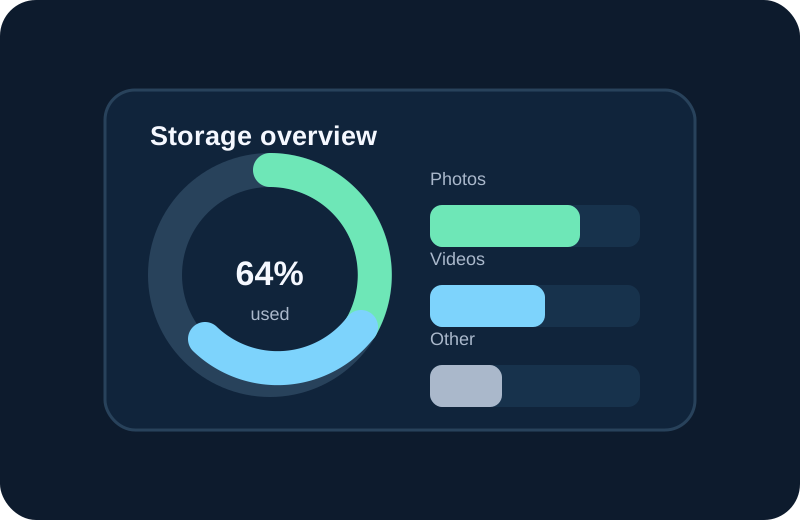
Start with the largest categories
Open Android storage settings and look at the categories taking the most space. Photos and videos often grow gradually because cameras, messaging apps and social apps create new files every day. Do not assume that every large file is junk. A long family video, scanned document or travel album may be more valuable than a hundred small screenshots.
Review large media before small files
Large files are easy to overlook because one video can consume more storage than hundreds of photos. Use a storage analyzer or large-file view to identify candidates. Sort by size when Android or your file manager provides that option. Open a file before deleting it if you are unsure what it contains.
Look for duplicates and near-duplicates
Burst shots, edited copies and downloaded images can create several versions of the same memory. A duplicate finder can group similar items, but a group is a suggestion, not an instruction to delete everything. Keep the clearest version and check whether another copy has a different crop, edit or important detail.
Treat screenshots as temporary records
Screenshots are useful when you need a receipt, address or conversation for a short time. They also accumulate quickly. Review screenshots in batches. Keep anything that contains information you still need, and remove expired tickets, old shopping confirmations, duplicate instructions and outdated notes.
Back up irreplaceable memories
Before a large cleanup, make sure your important photos and videos have a backup you can access. This can be a trusted cloud photo service, a computer or another storage device. Verify that the backup is complete before removing the originals.
Use compression when you want to keep the photo
Deletion is not the only way to save space. If a tool offers photo compression, compare the result with the original and decide whether the smaller version is good enough. Keep originals for important photos when quality matters.
Use a review-first workflow
Free AI Photo Cleaner is designed around scanning, reviewing and confirming. Its Google Play listing describes duplicate, similar, blurry, screenshot and large-image detection, with preview before deletion. That workflow is useful because the final decision remains with you.
Clean a little at a time
You do not need to remove years of files in one session. A 10-minute cleanup each week can be easier to check than a single large deletion session. Start with screenshots and obvious duplicates, then move to larger or more personal files once you are comfortable with the results.